What Is the Discount Ticket Block?
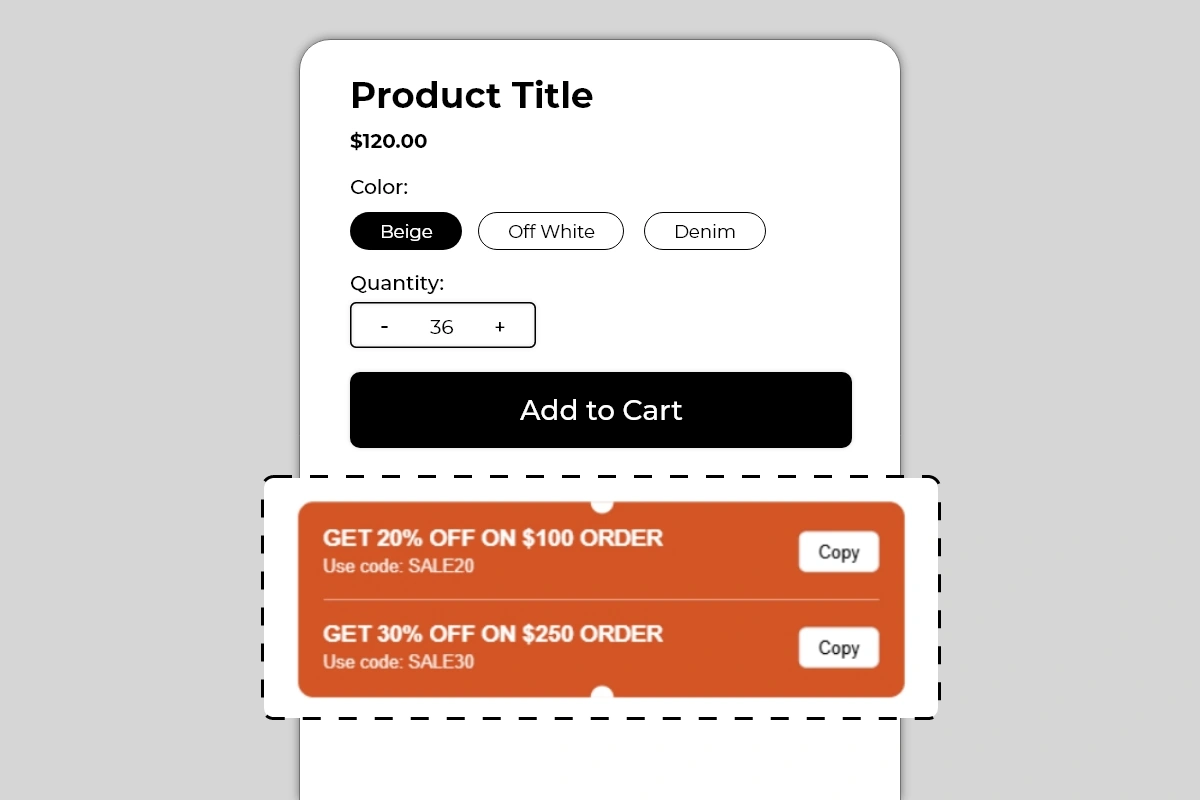 The Discount Ticket Block displays your active discount codes directly on the product page in a styled coupon ticket format. Each offer shows a bold headline describing the deal, the discount code below it, and a Copy button that lets shoppers copy the code to their clipboard in one click — ready to paste at checkout.
The block supports multiple offers stacked inside a single ticket, separated by a clean divider line. The notched edges on the top and bottom center of the block give it the visual appearance of a physical coupon ticket — immediately recognizable to any shopper as a discount they can use.
The Discount Ticket Block displays your active discount codes directly on the product page in a styled coupon ticket format. Each offer shows a bold headline describing the deal, the discount code below it, and a Copy button that lets shoppers copy the code to their clipboard in one click — ready to paste at checkout.
The block supports multiple offers stacked inside a single ticket, separated by a clean divider line. The notched edges on the top and bottom center of the block give it the visual appearance of a physical coupon ticket — immediately recognizable to any shopper as a discount they can use.
Why It Matters for Conversion
Discount codes are one of the most common tools Shopify merchants use to drive sales — but most stores deliver them in ways that create friction:- Sent in an email the shopper has to go find and open
- Shown in a popup that disappears after a few seconds
- Only revealed at checkout after the shopper has already committed
How to Add the Discount Ticket Block
- Go to Online Store → Themes in your Shopify admin
- Click Customize on your active theme
- Using the top dropdown, open your product template
- In the left sidebar, click Add block
- Under Apps, select Iconic Blocks → Discount Ticket
- The block appears in your layout — configure it in the right sidebar
- Drag the block to your preferred position in the left sidebar
- Click Save
Key Settings
Offer Headline The bold text at the top of each ticket row. This should state the offer clearly and specifically — what percentage or amount off, and what the condition is if any. Keep it in uppercase for visual impact, matching the style shown in the example. Good headline examples:- GET 20% OFF ON $100 ORDER
- GET 30% OFF ON $250 ORDER
- FREE SHIPPING ON ORDERS ABOVE $50
- FLAT 15% OFF — TODAY ONLY
- BUY 2 GET 1 FREE — USE CODE BELOW
Placement Strategy
Best position: Directly below the Add to Cart button This is the placement shown in the image and the most effective position for a discount ticket. A shopper is about to click Add to Cart and sees the ticket — they copy the code, add to cart, and apply it at checkout. The offer is top of mind at the exact moment of conversion. Second best position: Between the price and Add to Cart button Works well when the discount is price-dependent — for example, a percentage off that changes the effective price the shopper is paying. Placing it here lets the shopper see the offer alongside the price and mentally calculate their savings before clicking Add to Cart. Avoid placing it:- Above the product title — the discount ticket is a conversion closer, not a first impression tool. Let the product establish itself before showing the offer.
- At the bottom of the product page — by the time a shopper scrolls that far, they have either decided or left. The ticket needs to be in the active buying zone.
- Inside an accordion or collapsed tab — a hidden discount code is no better than one buried in an email.
Best Practices
- Always verify the code works before publishing. Go to your Shopify admin under Discounts, confirm the code is active, check the conditions and expiry date, and test the code in a real checkout before the block goes live. A broken discount code damages trust more than not showing one at all.
- Use tiered discounts to increase average order value. Showing two offers — 20% off on 250 — gives shoppers an incentive to add more to their cart to reach the higher tier. This is one of the most effective AOV strategies available and the Discount Ticket Block is designed specifically to display this pattern.
- Keep the headline uppercase and specific. Uppercase text in the offer headline creates visual weight and reads like a real discount ticket. Vague headlines like SAVE BIG underperform specific ones like GET 20% OFF ON $100 ORDER.
- Use a background color that contrasts with your page. The ticket needs to stand out. On a white product page, orange, red, green, or a strong brand color all work. A light pastel ticket on a white page will be overlooked.
- Remove or update the block when the offer expires. An expired discount code on the product page that fails at checkout is a serious trust problem. Update the block every time your discount offer changes.
- Match the code exactly as it appears in Shopify Discounts. Codes are case-sensitive in some setups. If your Shopify discount code is SALE20, do not display it as sale20 in the block. Use the exact format the shopper needs to enter.
Common Mistakes
Displaying a code that does not exist or has expired This is the most damaging mistake with this block. A shopper copies the code, adds to cart, goes to checkout, pastes the code, and gets an error. At that point, trust is broken and the sale is almost certainly lost. Always keep the block in sync with your active Shopify discounts. Using a vague offer headline GET DISCOUNT or SPECIAL OFFER tells the shopper nothing about what they are actually getting. Every headline should state the exact offer — percentage, amount, or condition. Specificity makes the offer feel real and worth acting on. Using a background color that blends into the page A light-colored ticket on a white background looks like part of the page layout, not a prominent offer. The ticket needs to visually pop — use a strong, saturated background color that makes the block immediately identifiable as a coupon. Not testing the Copy button on mobile The Copy button relies on the browser’s clipboard API, which behaves differently across devices and browsers. Always test the Copy button on a real mobile device after publishing — not just in the Theme Editor preview. Showing a discount that applies store-wide on a product-specific page without clarification If your discount code only applies to certain products or collections and the shopper copies it from a product page where it does not apply, they will get a checkout error. Make sure the offer displayed in the block matches the product it is shown on.Troubleshooting
The Copy button is not working- Cause: The browser’s clipboard API is blocked, or the button is not functioning correctly on the live page.
- Solution: Test in a different browser and on a real mobile device. If the issue is consistent across browsers, contact Iconic Blocks support with your store URL and the browser you are using.
- Cause: The code in the block does not match the active code in Shopify Discounts, or the discount has expired or has conditions that are not met.
- Solution: Go to Shopify Admin → Discounts, verify the code is active, check the expiry date and minimum order conditions, and update the block to match exactly.
- Cause: The block was not saved after being added, or it was added to the wrong product template.
- Solution: Go to Online Store → Themes → Customize, open the correct product template, confirm the block is visible in the left sidebar layout, and click Save.
- Cause: The theme’s CSS may be applying its own background styles that override the block color setting.
- Solution: Try a different color value in the block settings and save. If the override continues, contact Iconic Blocks support.
- Cause: Your store uses multiple product templates and the block was only added to one.
- Solution: Open each product template in the Theme Editor and add the block to any template where it is missing.
- Cause: Changes were not saved, or the browser is showing a cached version of the page.
- Solution: Click Save in the Theme Editor, then open the live product page in a new private or incognito browser window.