What Is the Video Slider Block?
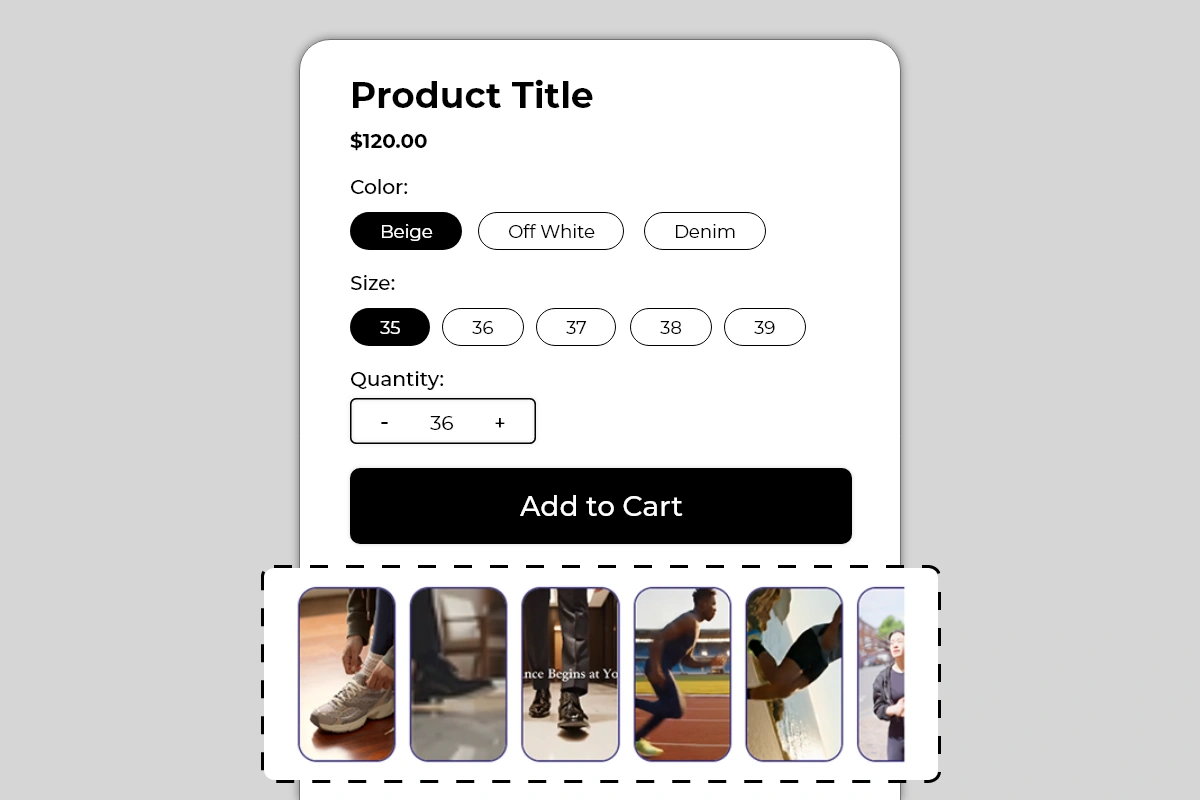 The Video Slider Block displays a horizontally scrollable row of portrait-format video cards directly on your product page. Each card shows a video — either playing inline or opening on tap — in a tall rounded-corner card format designed for mobile-first viewing.
The row scrolls horizontally, with a partially visible card at the end signaling to shoppers that more videos are available. The format is modeled on the short-form vertical video style shoppers are already familiar with from Instagram Reels, TikTok, and YouTube Shorts — which means the interaction pattern requires no explanation.
Use this block to show:
The Video Slider Block displays a horizontally scrollable row of portrait-format video cards directly on your product page. Each card shows a video — either playing inline or opening on tap — in a tall rounded-corner card format designed for mobile-first viewing.
The row scrolls horizontally, with a partially visible card at the end signaling to shoppers that more videos are available. The format is modeled on the short-form vertical video style shoppers are already familiar with from Instagram Reels, TikTok, and YouTube Shorts — which means the interaction pattern requires no explanation.
Use this block to show:
- Product demonstration videos
- Lifestyle and in-use footage
- Customer video testimonials
- Brand story or behind-the-scenes content
- How-to or tutorial videos relevant to the product
Why It Matters for Conversion
A product image shows what something looks like. A video shows what it does, how it moves, how it fits, and what it feels like to use. For products where the experience of use matters — footwear, apparel, equipment, beauty tools, food, or anything that moves or performs — video is one of the most powerful conversion tools available. Shoppers who watch a product video before buying have significantly lower return rates because their expectations are set by what they actually saw the product do — not just what they imagined from a static image. Video reduces the uncertainty that drives returns and the hesitation that drives abandonment. The slider format specifically solves the problem of where to put video on a product page. A single embedded video takes up significant vertical space. The slider allows multiple videos to coexist in a compact, scrollable row that does not dominate the page but is clearly available and inviting to engage with.How to Add the Video Slider Block
- Go to Online Store → Themes in your Shopify admin
- Click Customize on your active theme
- Using the top dropdown, open your product template
- In the left sidebar, click Add block
- Under Apps, select Iconic Blocks → Video Slider
- The block appears in your layout — configure it in the right sidebar
- Drag the block to your preferred position in the left sidebar
- Click Save
Key Settings
Video Source Add the URL or upload the video file for each card. Supported sources typically include YouTube, Vimeo, and direct video file uploads. Use the format that gives you the best playback quality and loading speed for your audience. YouTube and Vimeo links are recommended over direct file uploads for larger video files — they load faster and do not affect your store’s page speed. Thumbnail Image Each video card displays a thumbnail before the video plays. This can be auto-generated from the video or manually set. A manually set thumbnail gives you full control over what shoppers see before they tap — use a frame that shows the product clearly and invitingly. The thumbnail is what gets a shopper to tap — choose it carefully. Video Caption or Overlay Text An optional short text overlay on the video card — visible in Image 2 on the third card (nce Begins at Yo is a partial caption). Use this for a short product claim, a video title, or a call to action. Keep it brief — 3 to 6 words. The text appears over the video thumbnail and should be readable against the video content behind it. Use a text color with enough contrast to be legible on any frame. Card Border A thin border around each card — visible in Image 2 as a subtle dark outline. Configurable in color and width. On white or light backgrounds, a thin border provides clean visual definition for each card. On dark themes, remove or reduce the border. Card Corner Radius Controls the roundness of the card corners. The default is a generous rounded corner as shown in the images. Reduce for a more rectangular, editorial feel. Increase for a softer, more app-like appearance. Card Size Control the height and width of each video card. The default portrait ratio works best for vertical video content. If your videos are landscape format, adjust the card dimensions accordingly — though portrait format is strongly recommended for mobile viewing. Number of Cards Visible Set how many cards are fully visible before the row becomes scrollable. The partial cut-off of the last visible card is an important scroll affordance — keep at least one card partially visible to signal that the row is scrollable. Autoplay Configure whether videos autoplay when the page loads or when they hover over it. Autoplay can increase engagement but may affect page performance and can be disruptive if audio plays automatically. If using autoplay, ensure videos are muted by default.Choosing the Right Videos
The videos you put in this block determine how much conversion value it delivers. The slot format encourages multiple videos — but quality always outperforms quantity. Best video types for this block:- Product in use — showing the product being worn, handled, operated, or consumed in a real context. For footwear, this means footage of the shoe being worn while walking, running, or styled. For a skincare product, it means application footage with visible results.
- Close-up detail footage — slow-motion or macro shots of material texture, stitching, finish, or mechanism. These answer the tactile questions a static image cannot — what does this actually look and feel like up close?
- Lifestyle context footage — the product in the environment where it belongs. A running shoe on a track. A desk lamp in a home office. A backpack in a travel setting. This builds aspirational connection without being overtly promotional.
- Customer video testimonials — real customers talking about or demonstrating the product. These carry social proof that branded content cannot replicate.
- How-to or tutorial clips — particularly valuable for products with a learning curve or setup process. Showing how easy something is to use can directly address the hesitation shoppers have about whether they can figure it out.
- Long promotional brand videos over 60 seconds — shoppers on a product page are in evaluation mode, not viewing mode
- Videos with poor audio that autoplays — disruptive and damaging to the page experience
- Generic stock footage with no connection to the specific product — adds no information value
Placement Strategy
Best position: Directly below the Add to Cart button This is the placement shown in Image 1 and the most effective position for the Video Slider. A shopper who has evaluated the product and is near the buy decision sees the video row immediately below Add to Cart. A compelling video at this moment can provide the final visual confirmation that pushes a hesitant shopper from consideration to purchase. Second best position: Below the product description Works well when the videos serve as supporting evidence for claims made in the description. The shopper reads the description — “premium cushioning for all-day comfort” — and immediately below sees video footage of the product being worn. The video validates the written claim visually. Third position: Between the price and Add to Cart button Appropriate for products where video demonstration is critical to the buying decision — for example, a product with a unique mechanism, a beauty tool with a specific application technique, or a food product where visual appeal drives purchase intent. Placing video here makes it part of the primary evaluation before the shopper commits. Avoid placing it:- Above the product title — video is supporting content, not a headline
- At the very bottom of the page below reviews and FAQs — it will be seen by too few shoppers to have meaningful conversion impact
- As the only trust or conversion block on the page — video works best in combination with trust badges, benefits, and other conversion elements
Best Practices
- Use portrait format video for all cards. The block is designed for vertical video. Landscape videos displayed in portrait cards will be cropped and may lose important content at the edges. Shoot or source vertical video specifically for this block wherever possible.
- Keep individual videos under 60 seconds. Shoppers on a product page are not in a passive viewing state. Short, dense videos that show the product clearly and quickly perform better than long videos that take time to get to the point. 15 to 30 seconds is the ideal range for most product page videos.
- Set a strong thumbnail for every card. The thumbnail is the first thing shoppers see and determines whether they tap to watch. Use a frame that shows the product clearly at its most appealing — not a transition frame, not a black screen, not a blurry motion frame.
- Mute autoplay videos by default. If you enable autoplay, always set videos to mute on load. Autoplay with audio is disruptive and will cause shoppers to close the page. Let shoppers unmute if they want audio.
- Start with 3 to 5 videos. More than 5 videos in the slider risks diluting engagement — shoppers watch the first one or two and rarely continue to the fifth or sixth. Curate your strongest videos rather than filling the slider for the sake of volume.
- Prioritize mobile-optimized video files. A significant portion of your product page traffic is on mobile. Large video files load slowly on mobile connections. Compress videos before uploading and use YouTube or Vimeo links where possible to leverage their adaptive streaming.
- Lead with your strongest video first. The first card in the slider is the one most shoppers will see and engage with. Put your best, most compelling video first — the one that most clearly shows the product at its best.
Common Mistakes
Using landscape videos in a portrait card format A landscape video displayed in a portrait card will be aggressively cropped on the sides. If your existing product videos are all landscape format, either reformat them for vertical display or adjust the card dimensions to match the landscape ratio. Do not force landscape content into portrait cards without checking what gets cropped. Using thumbnails that do not show the product A thumbnail showing a blurry mid-motion frame, a dark background, or a non-product subject will not entice shoppers to tap. Every thumbnail should show the product clearly and attractively. Adding too many low-quality videos Five strong videos convert better than ten mediocre ones. Shoppers engage with the first video and assess the rest based on that experience. If the first video is weak, they will not continue. Curate ruthlessly. Enabling autoplay with audio This is one of the fastest ways to cause a shopper to leave the page. If you use autoplay, mute is non-negotiable. Using videos that are too long A 3-minute brand documentary on a product page is not a conversion tool. Shoppers are evaluating, not watching. Keep videos under 60 seconds. Under 30 seconds is better for most product types. Not updating videos when products change If a product is updated, discontinued, or rebranded, the videos showing the old version may now be inaccurate or misleading. Review the videos in this block whenever a significant product change occurs.Troubleshooting
Videos are not playing on the live page- Cause: The video URL is invalid, the video has been deleted from the source platform, or the browser is blocking the video embed.
- Solution: Verify each video URL is accessible by opening it directly in a browser. Re-enter the URL in the block settings. If using YouTube or Vimeo, ensure the video is set to public and allows embedding.
- Cause: Direct video file uploads are large and are loading fully on page load.
- Solution: Switch from direct file uploads to YouTube or Vimeo links. These platforms use adaptive streaming that loads video efficiently without impacting page speed. Compress direct upload files if YouTube or Vimeo is not an option.
- Cause: The thumbnail image was not set, or the auto-generated thumbnail failed to load.
- Solution: Manually upload a thumbnail image for each video card in the block settings. Use a JPEG or PNG at a minimum of 400 x 700 pixels for portrait format cards.
- Cause: A theme CSS conflict may be preventing horizontal scroll, or all cards are fitting within the screen width.
- Solution: Ensure at least one card is partially cut off to trigger the scroll container. If scrolling is broken, check for theme CSS overrides. Contact Iconic Blocks support if the issue persists.
- Cause: The text color does not have enough contrast against the video thumbnail content behind it.
- Solution: Change the overlay text color to white or add a semi-transparent dark background behind the text. Test readability across multiple thumbnail frames since the background content varies per card.
- Cause: The block was not saved after being added, or it was added to the wrong product template.
- Solution: Go to Online Store → Themes → Customize, open the correct product template, confirm the block is in the left sidebar layout, and click Save.
- Cause: Changes were not saved, or the browser is showing a cached version of the page.
- Solution: Click Save in the Theme Editor, then open the live product page in a new private or incognito browser window.