

Badges Block
What Is the Badges Block?
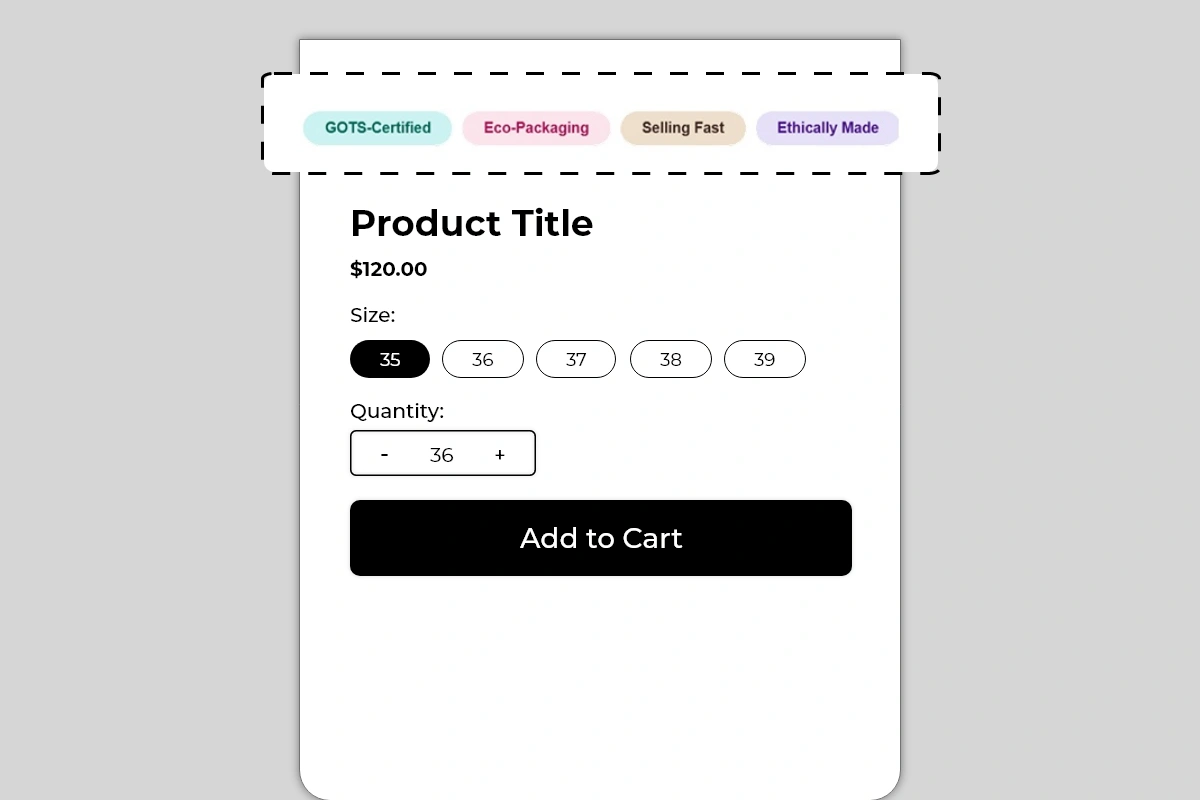
The Badges Block displays a row of small, colorful pill-shaped tags on your product page. Each badge shows a short label — a product attribute, certification, urgency signal, or brand claim — in a distinct pastel color that makes it immediately visible without being aggressive or intrusive.
Unlike trust badges or benefit lists, these badges are scannable at a glance. A shopper does not need to read a sentence or process an icon. They see GOTS-Certified or Selling Fast in under a second and it registers instantly.
Use this block to surface product qualities and signals that might otherwise be buried in your description or missed entirely by shoppers who skim.
Why It Matters for Conversion
Most shoppers form their first impression of a product within a few seconds of landing on the page. At that moment they are not reading — they are scanning. Pill badges are designed specifically for this scanning behavior.
A badge like Ethically Made signals brand values before a shopper reads a single word of the description. Selling Fast creates urgency without a countdown timer. Customer Favorite adds social proof without a review widget. Limited Stock prompts action without a separate stock indicator block.
Each badge communicates one signal in the least amount of time possible — which is exactly what the first few seconds of a product page visit require.
How to Add the Badges Block
Go to Online Store → Themes in your Shopify admin
Click Customize on your active theme
Using the top dropdown, open your product template
In the left sidebar, click Add block
Under Apps, select Iconic Blocks → Badges
The block appears in your layout — configure it in the right sidebar
Drag the block to your preferred position in the left sidebar
Click Save
Key Settings
Badge Label The text displayed inside each pill. Keep every label to 1 to 3 words maximum. The badge format is designed for short, punchy labels — not sentences. Longer text breaks the pill shape and reduces readability.
Good examples:
GOTS-Certified
Eco-Packaging
Selling Fast
Ethically Made
Customer Favorite
Limited Stock
Vegan Formula
Handcrafted
Award-Winning
Badge Background Color Each badge has its own individually configurable pastel background color. The color should be distinct enough to visually separate each badge from the others but soft enough not to overpower the product page. Avoid using the same color for multiple badges — color differentiation helps the eye process each badge as a separate signal.
Text Color Matches or complements the badge background. Keep text dark enough to be readable against the pastel background. The examples use a slightly deeper tone of the same hue as the background — this creates a cohesive, polished look without harsh contrast.
Number of Badges The block supports multiple badges displayed in a horizontal row that wraps to a second row on smaller screens. Use between 3 and 6 badges. Fewer than 3 looks sparse. More than 6 starts to crowd the block and dilutes the impact of each individual signal.
Badge Order Arrange badges by priority — the most important signal first on the left, since that is where the eye naturally starts. If you have a certification and an urgency signal, put the certification first to establish credibility, then follow with the urgency badge.
Placement Strategy
Best position: Above the product title This is the placement shown in the image and the most effective position for this block. Badges placed above the product title are the first thing a shopper sees when they land on the page. They set context and expectation before the shopper even reads the product name. A GOTS-Certified or Ethically Made badge here immediately communicates brand values to the right audience.
Second best position: Between the product title and price This works well when your badges are urgency or availability signals — Selling Fast, Limited Stock, Customer Favorite. Placed between the title and price, they create a sense of demand at the exact moment the shopper is about to evaluate the cost.
Avoid placing it:
Below the Add to Cart button — badges are first-impression signals, not closing arguments
Inside the product description — they lose visual separation and blend into text
At the bottom of the product page — almost no shoppers will see them there
Best Practices
Use badges for signals that cannot fit anywhere else. Certifications, ethical claims, trending signals, and niche product attributes are perfect for badges. If the information can go in a benefit item or trust badge, put it there. Badges work best for short claims that stand alone.
Keep every label to 3 words or fewer. The pill shape only works visually when the text is short. The moment a badge label wraps inside the pill, it stops looking like a badge and starts looking like a broken layout.
Use different colors for each badge. Color is part of how the eye separates and processes each badge. Two badges in the same color look like a group, not individual signals. Each badge should be immediately distinguishable at a glance.
Match badge content to the product, not the store. A badge saying GOTS-Certified should only appear on products that are actually GOTS-certified. Generic badges applied to every product lose credibility fast.
Combine urgency and attribute badges for maximum impact. A row of Ethically Made, Eco-Packaging, Customer Favorite, Selling Fast covers brand values, social proof, and urgency simultaneously — in under two seconds of reading time.
Keep badge colors soft, not bold. Pastel tones work because they add color without competing with the product image or the Add to Cart button. Bold or saturated colors draw too much attention to the badges and away from the product itself.
Badge Ideas by Store Type
Fashion and apparel Ethically Made, GOTS-Certified, Eco-Packaging, Selling Fast, Limited Edition, Handcrafted
Health, wellness, and supplements Vegan Formula, Gluten-Free, Lab Tested, No Additives, Customer Favorite, Limited Stock
Beauty and skincare Cruelty-Free, Dermatologist Tested, Natural Ingredients, Award-Winning, Bestseller
Food and beverage Organic, Non-GMO, Locally Sourced, Sugar-Free, Chef Approved, Selling Fast
Home and lifestyle Handcrafted, Sustainably Sourced, Limited Edition, Customer Favorite, Eco-Friendly
Common Mistakes
Writing badge labels that are too long A label like Made With Organic Cotton does not fit cleanly inside a pill badge. It wraps, breaks the shape, and looks unfinished. Cut it to Organic Cotton or GOTS-Certified — same message, correct format.
Using the same color for multiple badges When two or more badges share the same background color, they visually merge into one group. The individual signal strength of each badge drops. Always assign a unique color to each badge.
Adding badges that do not apply to the product Displaying Limited Stock on a product that has 500 units in stock, or GOTS-Certified on a product without that certification, damages trust the moment a shopper investigates. Every badge must be accurate.
Using too many badges Six or more badges in a row starts to feel like visual noise. Shoppers stop reading them individually and start ignoring the block entirely. Pick the 3 to 5 most impactful signals and stop there.
Placing badges below the fold Badges are designed for immediate first-impression impact. If they are placed below the product description or near the bottom of the page, they are not doing their job. Keep them above the product title or between the title and price at the latest.
Troubleshooting
The block is not appearing on the product page
Cause: The block was not saved after being added, or it was added to the wrong product template.
Solution: Go to Online Store → Themes → Customize, open the correct product template, confirm the block is visible in the left sidebar layout, and click Save.
Badge colors look different on the live store than in the Theme Editor
Cause: The theme's CSS may be applying its own background or color styles that override the block settings.
Solution: Try a stronger or more distinct color value in the badge settings. If the issue continues, contact Iconic Blocks support with your store URL.
Badge labels are wrapping inside the pill on mobile
Cause: The badge label is too long for the pill shape at smaller screen widths.
Solution: Shorten each badge label to 3 words or fewer. Preview using the mobile view toggle in the Theme Editor after each change.
Badges appear on some products but not others
Cause: Your store uses multiple product templates and the block was only added to one.
Solution: Open each product template in the Theme Editor and add the block to any template where it is missing.
The block is visible in the Theme Editor but not on the live store
Cause: Changes were not saved, or the browser is showing a cached version of the page.
Solution: Click Save in the Theme Editor, then open the live product page in a new private or incognito browser window.