

Discount Ticket Block
What Is the Discount Ticket Block?
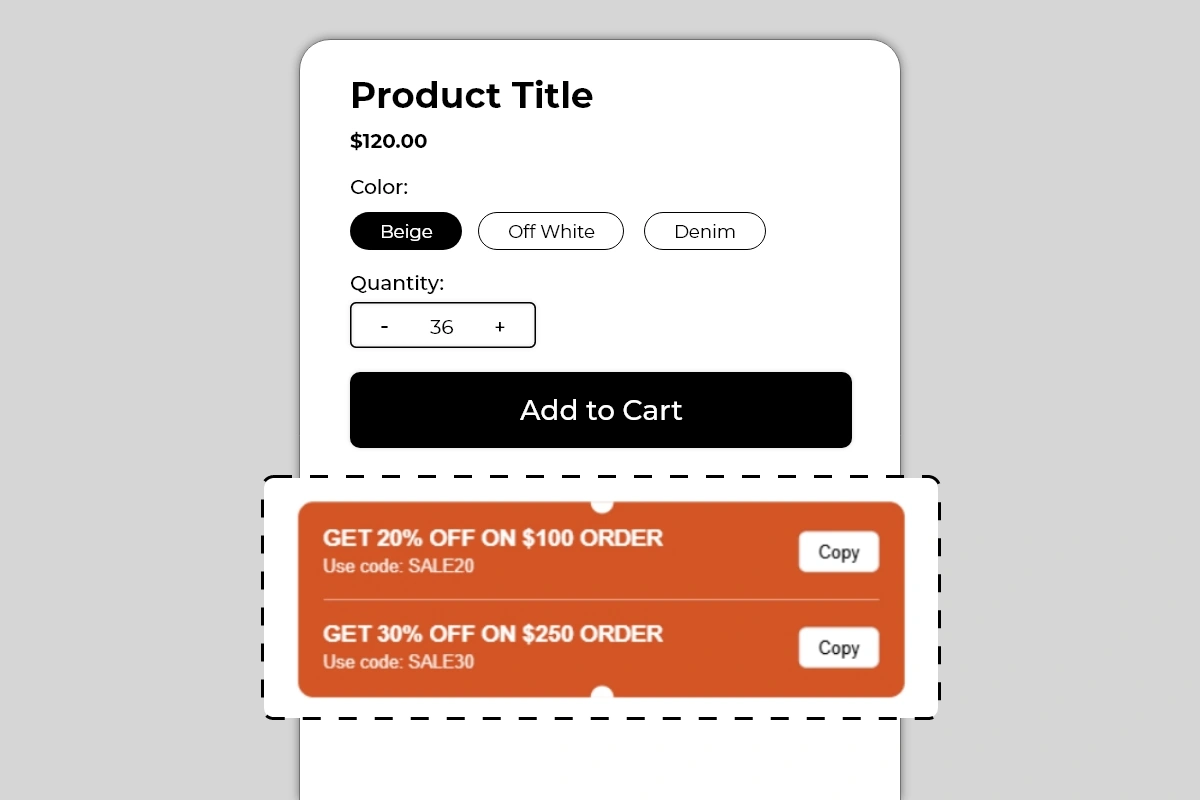
The Discount Ticket Block displays your active discount codes directly on the product page in a styled coupon ticket format. Each offer shows a bold headline describing the deal, the discount code below it, and a Copy button that lets shoppers copy the code to their clipboard in one click — ready to paste at checkout.
The block supports multiple offers stacked inside a single ticket, separated by a clean divider line. The notched edges on the top and bottom center of the block give it the visual appearance of a physical coupon ticket — immediately recognizable to any shopper as a discount they can use.
Why It Matters for Conversion
Discount codes are one of the most common tools Shopify merchants use to drive sales — but most stores deliver them in ways that create friction:
Sent in an email the shopper has to go find and open
Shown in a popup that disappears after a few seconds
Only revealed at checkout after the shopper has already committed
By the time a shopper is on your product page, that discount code is either forgotten or invisible. The result is a shopper who has an active offer but does not use it — and in many cases, leaves without buying because they do not feel they are getting the best deal.
The Discount Ticket Block solves this by putting the code exactly where the purchase decision is being made — on the product page, visible, copyable, and impossible to miss. A shopper who can see the discount and copy it in one click has one less reason to hesitate and one more reason to add to cart immediately.
How to Add the Discount Ticket Block
Go to Online Store → Themes in your Shopify admin
Click Customize on your active theme
Using the top dropdown, open your product template
In the left sidebar, click Add block
Under Apps, select Iconic Blocks → Discount Ticket
The block appears in your layout — configure it in the right sidebar
Drag the block to your preferred position in the left sidebar
Click Save
Key Settings
Offer Headline The bold text at the top of each ticket row. This should state the offer clearly and specifically — what percentage or amount off, and what the condition is if any. Keep it in uppercase for visual impact, matching the style shown in the example.
Good headline examples:
GET 20% OFF ON $100 ORDER
GET 30% OFF ON $250 ORDER
FREE SHIPPING ON ORDERS ABOVE $50
FLAT 15% OFF — TODAY ONLY
BUY 2 GET 1 FREE — USE CODE BELOW
Discount Code The actual code the shopper needs to enter at checkout. Displayed below the headline as Use code: SALE20. This must exactly match the discount code set up in your Shopify admin under Discounts. If the code in the block does not match the active code in Shopify, the shopper will copy a code that does not work — which is one of the worst trust-breaking experiences in ecommerce.
Copy Button The Copy button on the right of each offer row allows the shopper to copy the discount code to their clipboard with a single click. This button is built into the block — no additional setup required. Verify it works correctly on the live page after publishing.
Number of Offers The block supports multiple offers stacked in a single ticket. Use this when you have tiered discounts — for example, 20% off on orders above $100 and 30% off on orders above $250. Showing both tiers encourages shoppers to increase their order value to reach the higher discount threshold, which directly improves average order value.
Background Color The entire ticket uses a solid background color. The default example uses a strong orange. Choose a color that is noticeably different from your product page background so the ticket stands out immediately. This block should be visually prominent — it is carrying an offer the shopper needs to see.
Text Color White text on a colored background is the most readable combination for this block. Avoid light text on light backgrounds or dark text on dark backgrounds. The offer headline and code must be immediately readable at a glance.
Placement Strategy
Best position: Directly below the Add to Cart button This is the placement shown in the image and the most effective position for a discount ticket. A shopper is about to click Add to Cart and sees the ticket — they copy the code, add to cart, and apply it at checkout. The offer is top of mind at the exact moment of conversion.
Second best position: Between the price and Add to Cart button Works well when the discount is price-dependent — for example, a percentage off that changes the effective price the shopper is paying. Placing it here lets the shopper see the offer alongside the price and mentally calculate their savings before clicking Add to Cart.
Avoid placing it:
Above the product title — the discount ticket is a conversion closer, not a first impression tool. Let the product establish itself before showing the offer.
At the bottom of the product page — by the time a shopper scrolls that far, they have either decided or left. The ticket needs to be in the active buying zone.
Inside an accordion or collapsed tab — a hidden discount code is no better than one buried in an email.
Best Practices
Always verify the code works before publishing. Go to your Shopify admin under Discounts, confirm the code is active, check the conditions and expiry date, and test the code in a real checkout before the block goes live. A broken discount code damages trust more than not showing one at all.
Use tiered discounts to increase average order value. Showing two offers — 20% off on $100 and 30% off on $250 — gives shoppers an incentive to add more to their cart to reach the higher tier. This is one of the most effective AOV strategies available and the Discount Ticket Block is designed specifically to display this pattern.
Keep the headline uppercase and specific. Uppercase text in the offer headline creates visual weight and reads like a real discount ticket. Vague headlines like SAVE BIG underperform specific ones like GET 20% OFF ON $100 ORDER.
Use a background color that contrasts with your page. The ticket needs to stand out. On a white product page, orange, red, green, or a strong brand color all work. A light pastel ticket on a white page will be overlooked.
Remove or update the block when the offer expires. An expired discount code on the product page that fails at checkout is a serious trust problem. Update the block every time your discount offer changes.
Match the code exactly as it appears in Shopify Discounts. Codes are case-sensitive in some setups. If your Shopify discount code is SALE20, do not display it as sale20 in the block. Use the exact format the shopper needs to enter.
Common Mistakes
Displaying a code that does not exist or has expired This is the most damaging mistake with this block. A shopper copies the code, adds to cart, goes to checkout, pastes the code, and gets an error. At that point, trust is broken and the sale is almost certainly lost. Always keep the block in sync with your active Shopify discounts.
Using a vague offer headline GET DISCOUNT or SPECIAL OFFER tells the shopper nothing about what they are actually getting. Every headline should state the exact offer — percentage, amount, or condition. Specificity makes the offer feel real and worth acting on.
Using a background color that blends into the page A light-colored ticket on a white background looks like part of the page layout, not a prominent offer. The ticket needs to visually pop — use a strong, saturated background color that makes the block immediately identifiable as a coupon.
Not testing the Copy button on mobile The Copy button relies on the browser's clipboard API, which behaves differently across devices and browsers. Always test the Copy button on a real mobile device after publishing — not just in the Theme Editor preview.
Showing a discount that applies store-wide on a product-specific page without clarification If your discount code only applies to certain products or collections and the shopper copies it from a product page where it does not apply, they will get a checkout error. Make sure the offer displayed in the block matches the product it is shown on.
Troubleshooting
The Copy button is not working
Cause: The browser's clipboard API is blocked, or the button is not functioning correctly on the live page.
Solution: Test in a different browser and on a real mobile device. If the issue is consistent across browsers, contact Iconic Blocks support with your store URL and the browser you are using.
The discount code is not being accepted at checkout
Cause: The code in the block does not match the active code in Shopify Discounts, or the discount has expired or has conditions that are not met.
Solution: Go to Shopify Admin → Discounts, verify the code is active, check the expiry date and minimum order conditions, and update the block to match exactly.
The block is not appearing on the product page
Cause: The block was not saved after being added, or it was added to the wrong product template.
Solution: Go to Online Store → Themes → Customize, open the correct product template, confirm the block is visible in the left sidebar layout, and click Save.
The ticket background color looks different on the live store
Cause: The theme's CSS may be applying its own background styles that override the block color setting.
Solution: Try a different color value in the block settings and save. If the override continues, contact Iconic Blocks support.
The block appears on some products but not others
Cause: Your store uses multiple product templates and the block was only added to one.
Solution: Open each product template in the Theme Editor and add the block to any template where it is missing.
The block is visible in the Theme Editor but not on the live store
Cause: Changes were not saved, or the browser is showing a cached version of the page.
Solution: Click Save in the Theme Editor, then open the live product page in a new private or incognito browser window.