

Inventory Badge Block
What Is the Inventory Badge Block?
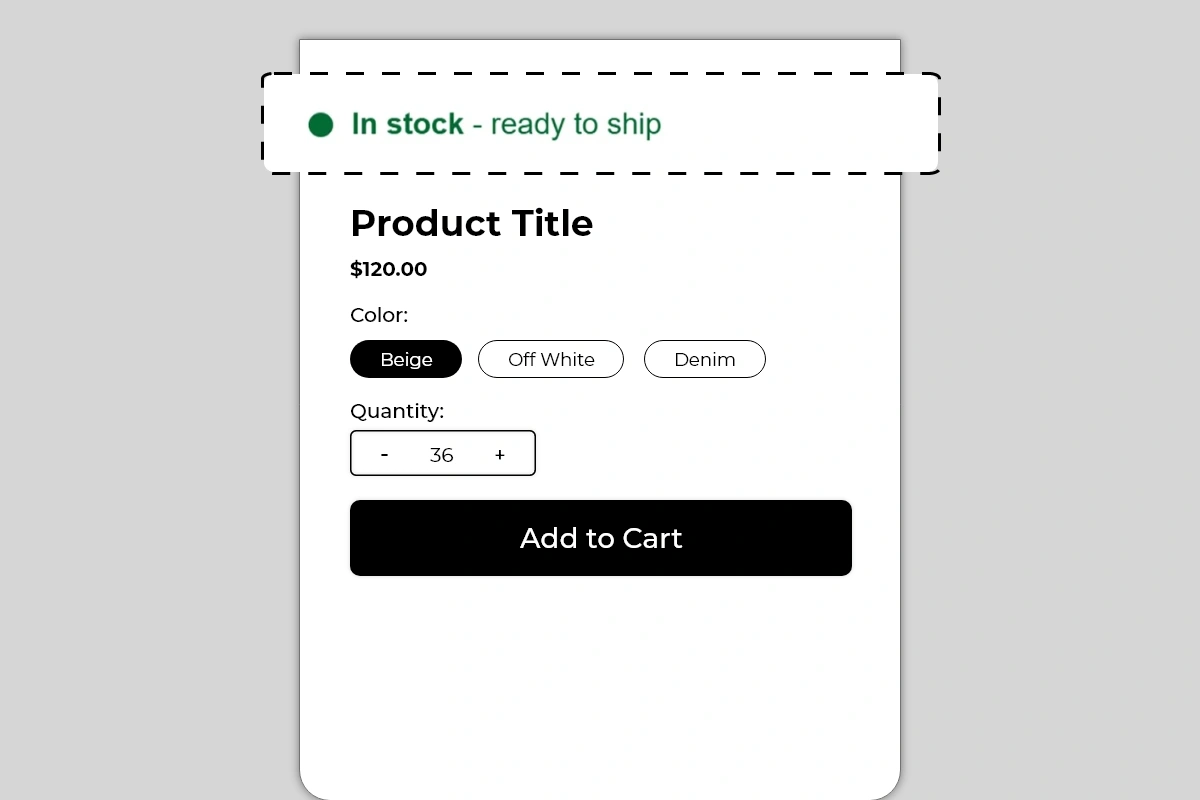
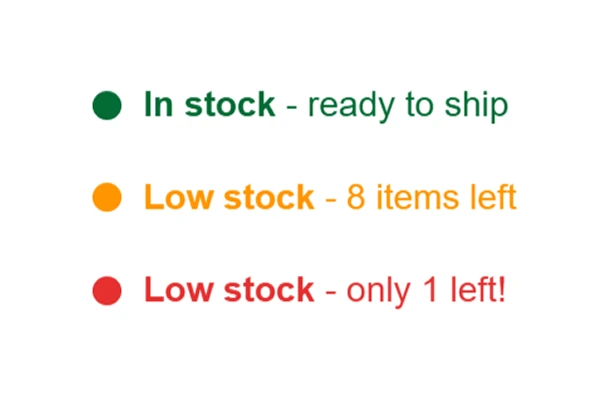
The Inventory Badge Block displays a real-time stock status message on your product page using a color-coded dot indicator. The dot color and message text change automatically based on your product's current inventory level — green for healthy stock, orange for low stock, and red for critically low stock.
Each status state is fully customizable:
Green state — shown when stock is above your defined threshold (In stock - ready to ship)
Orange state — shown when stock falls below a mid-level threshold (Low stock - 8 items left)
Red state — shown when stock is critically low (Low stock - only 1 left!)
The block reads your actual Shopify inventory in real time. You do not manually update the message — the block handles it automatically based on the thresholds you set.
Why It Matters for Conversion
Stock visibility does two things simultaneously — it reassures shoppers who want to know a product is available, and it creates urgency for shoppers who are hesitating.
A green In stock - ready to ship badge removes availability doubt before a shopper even considers adding to cart. An orange Low stock - 8 items left badge introduces social proof — other people are buying this. A red Low stock - only 1 left! badge creates immediate urgency that is difficult to ignore.
The critical insight is that this urgency is real. Unlike a countdown timer that can be set to any arbitrary duration, inventory levels are actual data. A shopper who sees only 1 left and knows that is genuine will act faster than they would for any artificial urgency mechanism. Authenticity is what makes this block particularly effective.
Prerequisites
Iconic Blocks installed and added as an app embed/available in your theme editor so you can find it under Apps when adding blocks.
Inventory tracking enabled for the products you want to display (in Shopify Admin → Products → [Product] → Inventory, enable Track quantity and set quantities).
How to Add the Inventory Badge Block
Go to Online Store → Themes in your Shopify admin
Click Customize on your active theme
Using the top dropdown, open your product template
In the left sidebar, click Add block
Under Apps, select Iconic Blocks → Inventory Badge
The block appears in your layout — configure it in the right sidebar
Drag the block to your preferred position in the left sidebar
Click Save
Key Settings
In Stock Threshold Set the inventory quantity above which the green In stock state is shown. For example, if you set this to 20, any product with more than 20 units in stock will show the green badge. This threshold depends on your typical stock levels — for high-volume products, set it higher. For limited products, even 10 units might qualify as healthy stock.
In Stock Message The text displayed when the product is above the in-stock threshold. Default is In stock - ready to ship. Customize this to match your fulfillment language — In stock - ships today, Available - dispatches in 24hrs, or simply In stock if you prefer minimal text.
Low Stock Threshold Set the inventory quantity below which the orange state triggers. For example, if you set this to 20, any product with between 6 and 20 units will show the orange badge. The message for this state can include the actual quantity — Low stock - [X] items left — which pulls the live inventory number automatically.
Low Stock Message The text for the orange state. Including the live inventory count makes this message more specific and credible — Low stock - 8 items left is more urgent than Low stock alone. Use the dynamic quantity variable if the block supports it to pull the number automatically.
Critical Stock Threshold Set the inventory quantity below which the red state triggers. For example, if you set this to 5, any product with 5 or fewer units will show the red badge. This is your highest urgency state — use it sparingly and only when stock is genuinely critical.
Critical Stock Message The text for the red state. This is where the most urgent language belongs — Low stock - only 1 left!, Almost gone - 3 remaining, Selling fast - only 2 left!. Keep it short and make the number specific if possible.
Dot Color per State Each of the three states has its own configurable dot color. The defaults — green, orange, red — follow a universally understood traffic light convention that shoppers recognize immediately. Only change these if your brand has a specific reason to — the default colors communicate status faster than any custom palette.
Text Color per State Each state also has its own text color. In the example, each state's text color matches its dot color — green text for in stock, orange text for low stock, red text for critical stock. This color consistency reinforces the status signal and makes each state immediately distinguishable.
Font Weight The bold keyword (In stock, Low stock) draws the eye first, followed by the supporting detail in regular weight. This hierarchy is built into the block — the first part of the message is bold, the second part is regular. Do not change this pattern — it is what makes the message readable at a glance.
How the Three States Work Together
Out of Stock Behavior (Inventory = 0)
Decide what you want shoppers to see when a product is sold out. Confirm how the block behaves at 0 inventory in your theme editor preview (for example, whether it hides automatically or continues to show the lowest state). If it continues to display, set your Critical Stock Threshold and message so inventory = 0 is never shown as In stock, and consider using an explicit sold-out message if the block provides one.
Stock Level | Dot Color | Default Message | Shopper Signal |
|---|---|---|---|
Above in-stock threshold | 🟢 Green | In stock - ready to ship | Available, no risk of missing out |
Below low-stock threshold | 🟡 Orange | Low stock - 8 items left | Selling, act soon |
Below critical threshold | 🔴 Red | Low stock - only 1 left! | Act now or miss out |
The block transitions between these states automatically as inventory changes. You configure the thresholds once and the block handles the rest.
Placement Strategy
Best position: Above the product title This is the placement shown in Image 1 and one of the strongest positions for the Inventory Badge. A shopper landing on the page sees the stock status before anything else. A green badge immediately signals availability. An orange or red badge sets an urgency frame for the entire product page visit — the shopper evaluates the product knowing it is limited.
Second best position: Between the product title and price Works well when you want availability to be part of the product evaluation — the shopper reads the title, sees the stock status, then sees the price. The sequence builds toward the buying decision naturally.
Third position: Between the price and Add to Cart button Effective for urgency-focused placement — the shopper has evaluated the product and is deciding whether to buy. Seeing Low stock - only 2 left! directly above the Add to Cart button at this moment is a strong conversion trigger.
Avoid placing it:
Below the Add to Cart button — availability information is pre-purchase context, not post-decision reassurance
At the bottom of the product page — stock status must be visible during the evaluation phase, not after
Inside an accordion or tab — hidden stock information creates no urgency
Best Practices
Set thresholds that reflect your actual inventory patterns. If your products regularly have 200+ units in stock, setting the in-stock threshold at 50 means you are almost always showing the green badge. That is fine — it reassures shoppers. But if you set the low-stock threshold too high and the orange badge shows when you have 80 units, it feels dishonest when shoppers discover stock is plentiful. Match thresholds to reality.
Let the live quantity show in low and critical stock messages. Low stock - 8 items left is significantly more credible and urgent than Low stock. The specific number feels real. A vague label feels like a marketing claim.
Use the red state only when stock is genuinely critical. If every product always shows the red badge because you set the critical threshold too high, shoppers will stop trusting it. Reserve the red state for when stock is truly limited — under 5 units is a reasonable starting point for most stores.
Keep all three message styles consistent in length. If the green message is 4 words and the red message is 8 words, the block changes size as stock levels change. This can shift other elements on the page. Write messages of similar character length across all three states.
Combine with the Countdown Timer block for maximum urgency. A low stock badge paired with a sales countdown timer creates two simultaneous urgency signals — limited quantity and limited time. This combination is particularly effective for flash sales and promotional periods.
Common Mistakes
Setting all thresholds too high If your critical stock threshold is set to 50 and you typically stock 60 units, the red badge appears almost immediately after restocking and stays there. This makes the urgency feel artificial and trains shoppers to ignore it. Set thresholds proportionally to your actual inventory volume.
Using vague messages without quantity Low stock without a number is a claim. Low stock - 6 items left is a fact. Shoppers respond to facts. If your block settings support dynamic quantity in the message, always use it for the orange and red states.
Keeping the block live when a product is out of stock If a product sells out and the block still shows In stock - ready to ship because the inventory update has not propagated, shoppers will add to cart and hit an out-of-stock error at checkout. Verify that inventory syncing between Shopify and the block is working correctly.
Using non-standard dot colors Replacing green with purple, orange with teal, and red with blue removes the immediate intuitive readability of the traffic light convention. Shoppers understand green/orange/red instinctively. Custom colors require the shopper to interpret the meaning — which adds friction. Only change dot colors if there is a strong brand reason.
Showing stock numbers for products with unlimited or untracked inventory If a product in your Shopify store has inventory tracking turned off, the block may display incorrectly or show unexpected values. Make sure inventory tracking is enabled in Shopify Admin → Products for every product where this block is used.
Troubleshooting
The badge is showing the wrong state for the current stock level
Cause: The thresholds are configured incorrectly, or Shopify inventory has not synced with the block yet.
Solution: Check the threshold settings in the block configuration and verify they reflect your intended logic. Check the product's actual inventory in Shopify Admin → Products → [Product] → Inventory. If the sync is delayed, wait a few minutes and refresh the live page.
The block is showing a stock count of zero but the product is not sold out
Cause: Inventory tracking may be disabled for the product in Shopify, causing the block to read zero.
Solution: Go to Shopify Admin → Products → [Product], scroll to the Inventory section, and make sure Track quantity is enabled. Set the correct stock quantity and save.
The badge is not appearing on the product page
Cause: The block was not saved after being added, or it was added to the wrong product template.
Solution: Go to Online Store → Themes → Customize, open the correct product template, confirm the block is in the left sidebar layout, and click Save.
The badge appears on some products but not others
Cause: Multiple product templates are in use and the block was only added to one, or inventory tracking is disabled on some products.
Solution: Check each product template in the Theme Editor and add the block where it is missing. Also verify inventory tracking is enabled for all affected products in Shopify admin.
The dot color or text color is not matching what was configured
Cause: Theme CSS may be overriding the color settings applied by the block.
Solution: Try a stronger, more distinct color value in the block settings and save. If the override continues, contact Iconic Blocks support with your store URL.
The block is visible in the Theme Editor but not on the live store
Cause: Changes were not saved, or the browser is showing a cached version of the page.
Solution: Click Save in the Theme Editor, then open the live product page in a new private or incognito browser window.