

Random Text Block
What Is the Random Text Block?
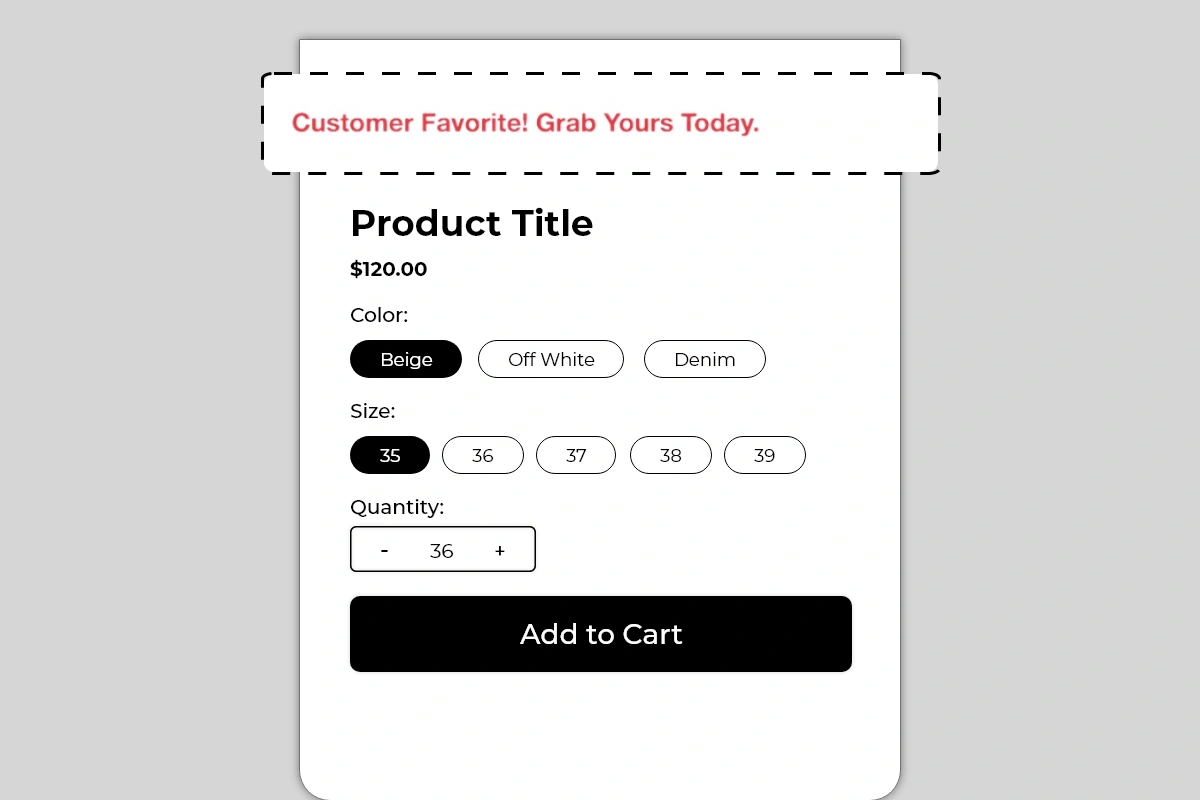
The Random Text Block displays a single line of custom text as a full-width banner on your product page. It is a simple, flexible block with one job — draw immediate attention to one specific message before a shopper engages with the product details.
You control the text completely. Use it for:
Urgency messages — Limited Stock! Order Before It's Gone.
Social proof callouts — Customer Favorite! Grab Yours Today.
Offer highlights — Free Shipping on This Product Today Only.
Product-specific claims — As Seen on Instagram. 10,000+ Happy Customers.
Seasonal promotions — Festive Sale — Extra 10% Off Applied at Checkout.
There are no icons, no subtitles, no cards. Just a clean, prominent line of text that the shopper sees immediately when they land on the product page.
Why It Matters for Conversion
The first few seconds a shopper spends on a product page determine whether they stay and engage or leave. Most product pages open with the product title and price — functional, but neutral. The Random Text Block gives you a way to lead with something that creates immediate interest, urgency, or confidence before the shopper has even read the product name.
A single well-written line placed at the top of the product page can:
Set a positive tone before the shopper evaluates the price
Create urgency that keeps the shopper engaged rather than bouncing
Highlight an offer they might otherwise miss
Reinforce social proof at the very first moment of attention
It is one of the simplest blocks in Iconic Blocks and one of the fastest to set up — but the quality of the text you put in it determines everything.
How to Add the Random Text Block
Go to Online Store → Themes in your Shopify admin
Click Customize on your active theme
Using the top dropdown, open your product template
In the left sidebar, click Add block
Under Apps, select Iconic Blocks → Random Text
The block appears in your layout — configure it in the right sidebar
Drag the block to your preferred position in the left sidebar
Click Save
Key Settings
Text Content This is the only content field in the block. Write one short, direct sentence. The entire conversion impact of this block rests on what you write here — see Best Practices below for guidance on what works.
Text Color Set the color of the text. Use a color that stands out from your theme's default body text — the example uses a red/coral tone which creates clear visual contrast against the white background. Match your brand color or use a high-contrast accent color that signals importance without clashing with the rest of the page.
Font Size Control how large the text appears. The default size works for most themes. Increase it slightly if the block is placed above the product title and you want it to command attention. Do not make it larger than your product title — the title should still be the dominant heading on the page.
Text Alignment Left, center, or right. Center alignment works best for short single-line messages. Left alignment works better if your product page layout is left-aligned and you want the text to flow naturally with the rest of the content.
Background The block background is typically white or transparent to match the product card. If your theme has a colored product page background, check that the text remains readable after saving.
Placement Strategy
Best position: Above the product title This is the placement shown in the image and the most impactful position for this block. It is the first thing a shopper sees when they land on the product page — before the title, before the price, before anything else. A compelling message here sets the tone for the entire product page visit.
Second best position: Between the price and Add to Cart button If your message is offer or urgency related — Free Shipping Today Only or Only 3 Left in Stock — placing it just above the Add to Cart button reinforces the reason to act at the exact decision moment.
Avoid placing it:
Below the Add to Cart button — by this point the shopper has already decided and the message adds no value
In the middle of the product description — it interrupts the reading flow and loses its impact
At the very bottom of the product page — almost no shoppers will see it there
Best Practices
Write for one specific outcome. Every message should do one job — create urgency, highlight social proof, announce an offer, or reinforce a claim. Do not try to combine two messages in one line.
Keep it to one sentence. The block is designed for a single punchy line. If you need more than one sentence, a different block — like Benefits or Trust Badges — is a better fit.
Use numbers and specifics when possible. 10,000+ Happy Customers is more convincing than Loved by Many. Only 5 Left is more urgent than Low Stock.
Match the message to the product. Do not use a generic store-wide message on every product. The more relevant the text is to the specific product, the more effective it will be.
Change the message regularly. A seasonal offer, a trending product callout, or a fresh social proof line keeps the block relevant. A message that has not been updated in months starts to lose credibility.
Use a contrasting text color. The text needs to stand out clearly from the background. If your theme is white, use a brand color, red, or dark tone for the text. Avoid light gray or pastel text — it will not get noticed.
Do not use ALL CAPS for the entire message. It reads as aggressive and is harder to scan. Capitalizing the first letter of each key word — as in Customer Favorite! Grab Yours Today. — creates emphasis without shouting.
Common Mistakes
Writing a vague or generic message Great product! Buy now. tells the shopper nothing they did not already know. Every word in this block needs to earn its place. If the message does not add information, urgency, or confidence — rewrite it.
Leaving the default placeholder text live Some merchants set up the block during configuration and forget to update the text before publishing. Always review your live product page after adding this block to confirm the correct message is showing.
Using the same text across every product When every product page shows the same Random Text message, it starts to feel like a site-wide banner rather than a product-specific signal. Shoppers learn to ignore it. Customize the message per product or at least per product category.
Making the text too long A long sentence that wraps across two lines loses its impact as a quick-read banner. If your message needs more than one line on desktop, shorten it. On mobile, even shorter lines wrap — always preview on mobile after writing your message.
Choosing a text color that blends into the background If the text color is too close to the background color, the block becomes invisible. Always check contrast — the message should be immediately readable without the shopper having to look for it.
Troubleshooting
The block is not appearing on the product page
Cause: The block was not saved after being added, or it was added to the wrong product template.
Solution: Go to Online Store → Themes → Customize, open the correct product template, confirm the block is in the left sidebar layout, and click Save.
The text is showing but the color looks wrong on the live store
Cause: Theme CSS is overriding the text color set in the block settings.
Solution: Try a stronger contrast color in the block settings. If the issue persists, contact Iconic Blocks support with a link to your product page.
The message is wrapping onto two lines on mobile
Cause: The text is too long for smaller screen widths.
Solution: Shorten the message to under 50 characters where possible. Preview using the mobile view toggle in the Theme Editor before saving.
The block appears on some products but not others
Cause: Your store uses multiple product templates and the block was only added to one.
Solution: Open each product template in the Theme Editor and add the block to any template where it is missing. Customize the text per template if needed.
The block is visible in the Theme Editor but not on the live store
Cause: Changes were not saved, or the browser is showing a cached version.
Solution: Click Save in the Theme Editor, then open the live product page in a new private or incognito browser window.