

Review Summary Block
What Is the Review Summary Block?
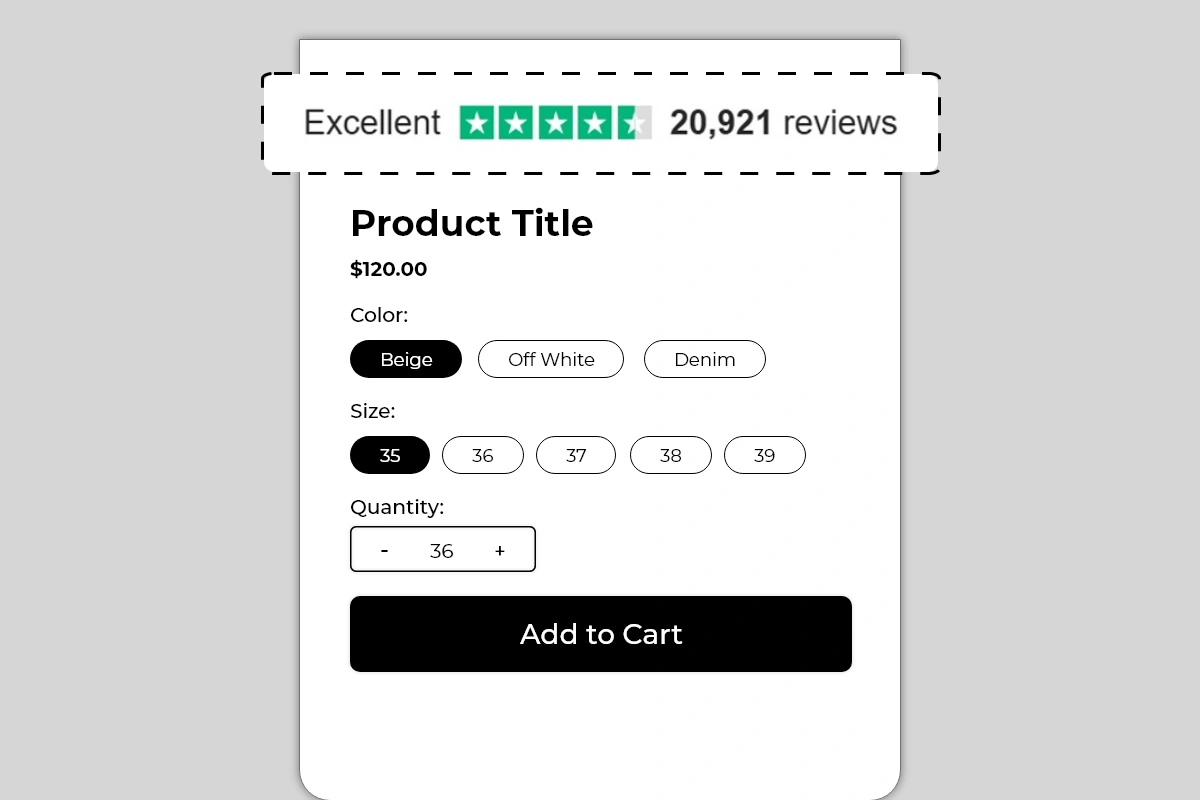
The Review Summary Block displays a compact, single-line social proof summary on your product page. It shows three pieces of information in one clean row — a rating label, a visual star rating, and a total review count — in the widely recognized Trustpilot green star format.
The example shows: Excellent ★★★★½ 20,921 reviews
This block does not connect to Trustpilot or any review platform automatically. You enter the rating label, star score, and review count manually in the block settings. This means you can use it to reflect your actual Trustpilot rating, your aggregate review count from any platform, or a combined figure from multiple sources.
Why It Matters for Conversion
Social proof is one of the most powerful conversion levers available on a product page. Before a first-time shopper commits to a purchase, they look for evidence that other people have bought from this store and had a good experience.
A review summary does this in the least amount of space possible. A single line showing Excellent and 20,921 reviews communicates three things instantly:
The store is established — 20,921 reviews mean thousands of customers have bought and reviewed
The experience is positive — Excellent, with a near-perfect star rating, signals consistent satisfaction
The risk of buying is low — volume and quality of reviews together reduce purchase anxiety significantly
Placed at the top of the product page, this block sets a credibility frame for everything the shopper reads after it. A shopper who sees strong social proof first evaluates the product more favorably than one who sees the product with no prior trust signal.
How to Add the Review Summary Block
Go to Online Store → Themes in your Shopify admin
Click Customize on your active theme
Using the top dropdown, open your product template
In the left sidebar, click Add block
Under Apps, select Iconic Blocks → Review Summary
The block appears in your layout — configure it in the right sidebar
Drag the block to your preferred position in the left sidebar
Click Save
Key Settings
Rating Label The text label displayed on the left side of the block. Default and most recognized value is Excellent — the standard Trustpilot label for a 4.5 to 5 star rating. You can also use Great, Good, or a custom label, but Excellent carries the strongest immediate recognition for shoppers familiar with Trustpilot's rating scale.
Standard rating labels by score:
4.5 to 5.0 → Excellent
4.0 to 4.4 → Great
3.5 to 3.9 → Good
3.0 to 3.4 → Average
Review Count The number displayed after the star rating — shown as 20,921 reviews in the example. Enter your actual total review count from your review platform. Format it with a comma for large numbers — 20,921 reads more credibly than 20921. Update this periodically as your review count grows.
Star Color The default is Trustpilot green — a universally recognized color for this rating format. Only change this if your brand has a specific reason to. The green star format carries instant recognition that a custom color loses.
Label and Count Text Color Keep this consistent with your theme's body text color — dark gray or black on white backgrounds. The text is supporting context for the stars, not the primary visual element.
Font Size The default size works for most themes. Increase slightly if the block feels too small relative to surrounding elements. Do not make it larger than the product title — this is a supporting social proof signal, not a headline.
Placement Strategy
Best position: Above the product title This is the placement shown in Image 1 and the highest-impact position for a review summary. A shopper landing on the product page sees Excellent ★★★★½ 20,921 reviews before they read anything else. This sets a strong credibility baseline that frames the entire product evaluation positively. Every claim the product makes after this point is read through the lens of established trust.
Second best position: Between the product title and price Works well when you want the social proof to sit alongside the product identity — the shopper reads the title, immediately sees the review score, then evaluates the price. The sequence builds confidence toward the buying decision.
Avoid placing it:
Below the Add to Cart button — social proof should build confidence before the decision, not after
At the bottom of the product page — it will be seen by almost no one in a position where it can influence conversion
Inside an accordion or tab — hidden social proof provides no conversion value
Best Practices
Always use your real, accurate rating and review count. The review count and star score in this block are manually entered — which means there is no automatic check preventing you from entering inflated numbers. Displaying 50,000 reviews when you have 200 is immediately detectable by shoppers who look for your store elsewhere. Use your actual numbers. Real social proof converts better than inflated social proof because it is credible.
Update the review count regularly. As your review count grows, update the number in the block settings. A store showing 124 reviews that actually has 2,400 is leaving credibility on the table. Set a monthly reminder to update the count.
Use the Trustpilot green star format without modification if your rating comes from Trustpilot. The green stars are brand-specific to Trustpilot. If your reviews come from Google, Shopify reviews, or another platform, consider whether using Trustpilot's visual format for a non-Trustpilot rating count is appropriate for your brand. The format works regardless of source, but transparency builds more long-term trust.
Pair with product-level reviews lower on the page. The Review Summary Block works at the macro level — store or brand-wide social proof. If you also have a reviews app showing individual product reviews below the description, the two work together: the summary builds immediate trust at the top, individual reviews provide detailed validation lower on the page.
Do not use this block if your review count is very low. A line showing Excellent ★★★★★ 7 reviews does not build trust — it raises questions about why there are so few. Wait until you have at least 50 to 100 reviews before using this block. A small but genuine number is better displayed through individual review snippets than a summary bar.
Common Mistakes
Inflating the review count or star rating Entering numbers that do not reflect reality is the fastest way to break trust when a shopper cross-checks your store on Google or Trustpilot. If your real rating is 4.1, show 4.1 — not 4.8. Accuracy in social proof is more persuasive than perfection because it is believable.
Never updating the review count A block that showed 1,240 reviews six months ago and still shows the same number today looks stale. Growing review counts signal an active, trusted store. Update the number every month to keep it current.
Using the block with a low or mediocre rating Displaying Average ★★★☆☆ 340 reviews on your product page actively works against conversion — it draws attention to a below-average rating. Only use this block when your aggregate rating is 4.0 or above. If your rating is lower, focus on improving it before making it a prominent product page element.
Choosing a non-standard star color Changing the star color from Trustpilot green to a custom brand color removes the instant recognition that makes this format effective. Most shoppers recognize the green star format immediately and respond to it positively. A purple or red star rating looks like a custom design element, not an established review signal.
Using the block as a substitute for actual reviews The Review Summary Block is a summary signal — it tells shoppers how many people have reviewed and what the overall score is. It does not replace individual reviews. Shoppers who want detail will look for individual reviews. If your store has no review app showing actual customer feedback, the summary number feels unverifiable. Use this block alongside a reviews app, not instead of one.
Troubleshooting
The block is not appearing on the product page
Cause: The block was not saved after being added, or it was added to the wrong product template.
Solution: Go to Online Store → Themes → Customize, open the correct product template, confirm the block is in the left sidebar layout, and click Save.
The stars are not rendering correctly — showing full stars instead of a partial star
Cause: The star rating was entered as a whole number. Partial stars require a decimal value.
Solution: Enter the rating as a decimal in the block settings — for example, 4.5 instead of 5. Save and verify on the live page.
The review count is not showing commas for large numbers
Cause: The number was entered without formatting in the block settings.
Solution: Manually enter the number with comma formatting in the review count field — 20,921 rather than 20921.
The block appears on some products but not others
Cause: Your store uses multiple product templates and the block was only added to one.
Solution: Open each product template in the Theme Editor and add the block to any template where it is missing.
The star color or text color is not displaying correctly on the live store
Cause: Theme CSS may be overriding the color settings from the block.
Solution: Try reapplying the color values in the block settings and saving. If the override continues, contact Iconic Blocks support with your store URL.
The block is visible in the Theme Editor but not on the live store
Cause: Changes were not saved, or the browser is showing a cached version of the page.
Solution: Click Save in the Theme Editor, then open the live product page in a new private or incognito browser window.